
Before you start
- Access to the parent’s email address.
- A browser and an Internet connection.
- A few minutes with your child to choose a starting point.
Create the family account
The parent account manages children’s profiles, access and progress. Your child then has a separate username and PIN login. Keep the parent password for the adults responsible.
- Open Create an account and enter the requested information, using your own email address.
- Choose a password that meets the displayed requirements and confirm it.
- Read the registration confirmation email and follow its link if email confirmation is requested.
- Sign in to the family account and complete any requested profile information.
Add your child’s profile
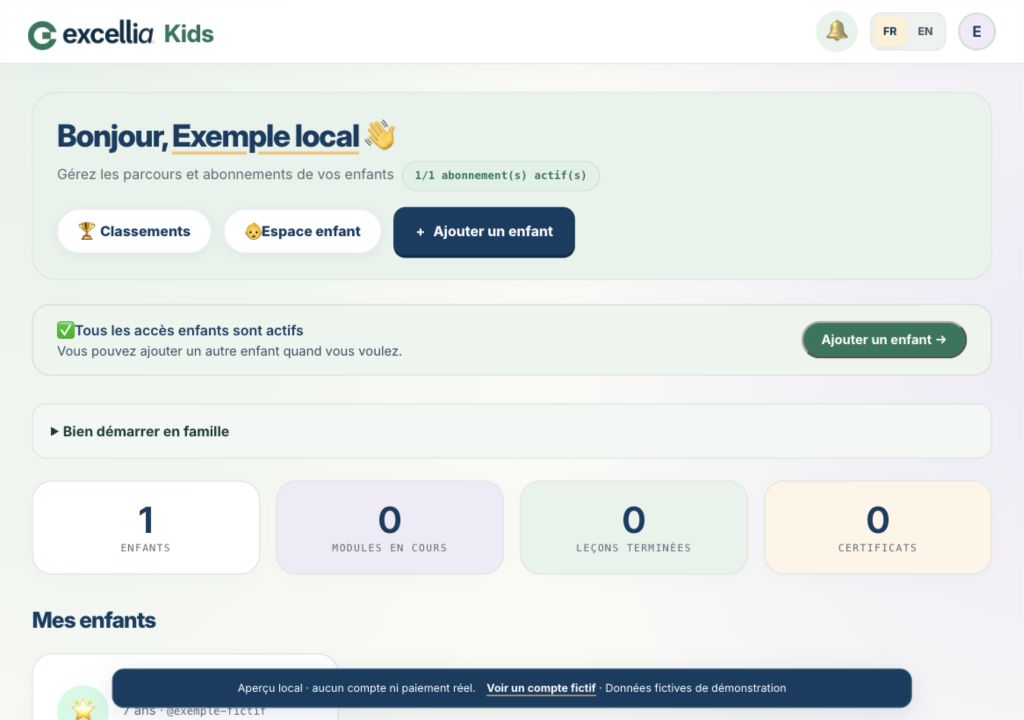
From the parent dashboard, add your child and complete the form, including their age and a four-digit PIN. Find the generated username: your child will use it to sign in. Note the PIN when choosing it; the dashboard will not display it again.
After adding the profile, the portal shows subscription choices for this child. To start with the available trial, use “← Dashboard” to return to the dashboard and check the profile’s “Free trial” status before opening its module. You can choose a plan separately.
- Check the profile and suggested learning path before starting.
- Open this child’s profile, then an available module.
- Read the first lesson’s objective together. Demonstrate one action, then let your child try.
Finish with a simple check
A session can be just one lesson and a small exercise. At the end, use the activity’s confirmation or next-step button. Return to the learning path and check its status before closing the tab.
Ask your child to show one thing they have understood. This is often more useful than a long session or a ranking target. To continue on another device, sign in to the same account and profile with an Internet connection.
- Each child has separate access and progress: check the profile name at every session.
- The Kids trial lasts 7 days from child profile creation and is separate from the 30-day Excellia CRM trial.
- The parent guide explains the learning approach; this help centre covers actions in the portal.
Troubleshooting
An account already exists for this address.
Use parent login with that address rather than creating another account. Contact Excellia if you have lost access.
A lesson appears locked.
Check the selected profile, the previous step and this child’s access status. A lock can depend on progress or subscription access.
Progress has not changed after the session.
Check your connection and the confirmation message. Return to the learning path and refresh once. If the difference remains, note the module and lesson for support.